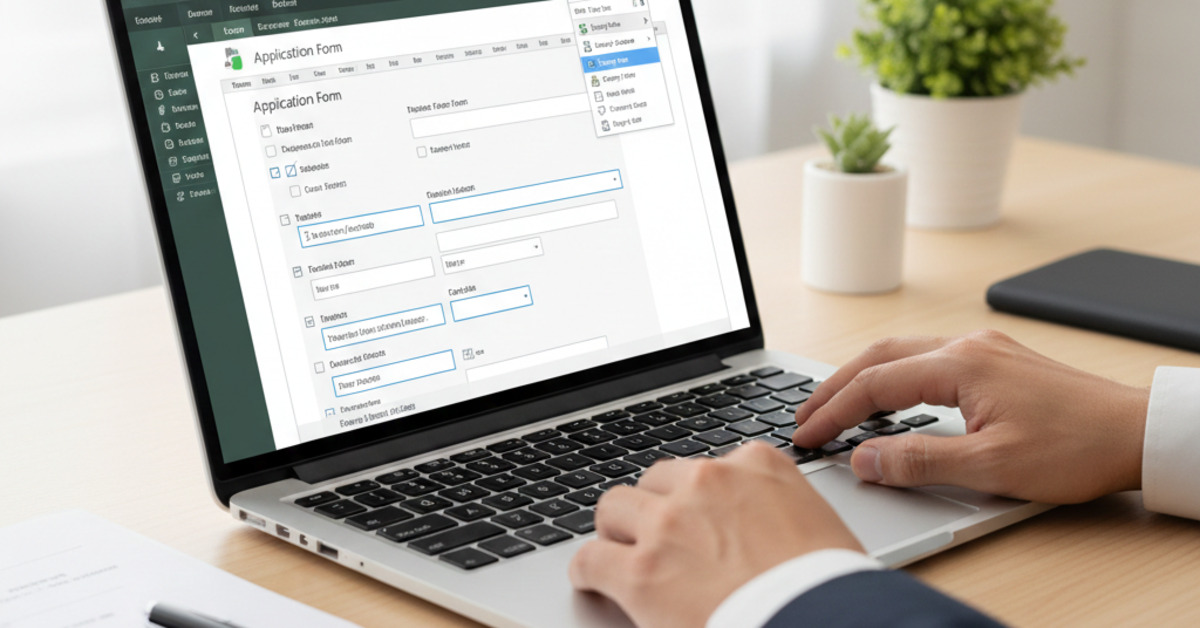
How to Create a Fillable Form in Microsoft Word
Whether you're creating a survey, a registration form, or a feedback form, a fillable form is a great way to collect information from others. And you don't need any special software to create one. You can create a fillable form right in Microsoft Word. In this guide, we'll show you how, step by step.
Step 1: Enable the Developer Tab
The first thing you need to do is enable the Developer tab in Microsoft Word. The Developer tab is hidden by default, but it's where you'll find the tools you need to create a fillable form.
- Click on the File tab.
- Click on Options.
- Click on Customize Ribbon.
- In the right-hand column, check the box next to Developer.
- Click OK.
Step 2: Add Content Controls
Now that you've enabled the Developer tab, you can start adding content controls to your form. Content controls are the fields that users will be able to fill out, such as text boxes, check boxes, and drop-down lists.
- Click on the Developer tab.
- In the Controls group, you'll see a variety of different content controls to choose from.
- To add a content control, simply click on it.
Here are a few of the most common content controls:
- Plain Text Content Control: This control allows users to enter plain text.
- Rich Text Content Control: This control allows users to enter formatted text, such as bold or italic.
- Check Box Content Control: This control allows users to check or uncheck a box.
- Combo Box Content Control: This control allows users to choose from a list of options.
- Drop-Down List Content Control: This control is similar to a combo box, but users can't add their own options.
- Date Picker Content Control: This control allows users to select a date from a calendar.
Step 3: Customize the Content Controls
Once you've added a content control, you can customize it by clicking on the Properties button in the Controls group. This will open a dialog box where you can change the title of the control, add placeholder text, and more.
Step 4: Protect the Form
The final step is to protect the form. This will prevent users from editing the form itself, and will only allow them to fill out the content controls.
- Click on the Developer tab.
- Click on Restrict Editing.
- In the Restrict Editing pane, check the box next to Allow only this type of editing in the document.
- In the drop-down list, select Filling in forms.
- Click on Yes, Start Enforcing Protection.
- You'll be prompted to enter a password. This is optional, but it's a good idea if you want to prevent users from unprotecting the form.
The Bottom Line
Creating a fillable form in Microsoft Word is easy. By enabling the Developer tab and adding content controls, you can create a professional-looking form that is easy for others to fill out.