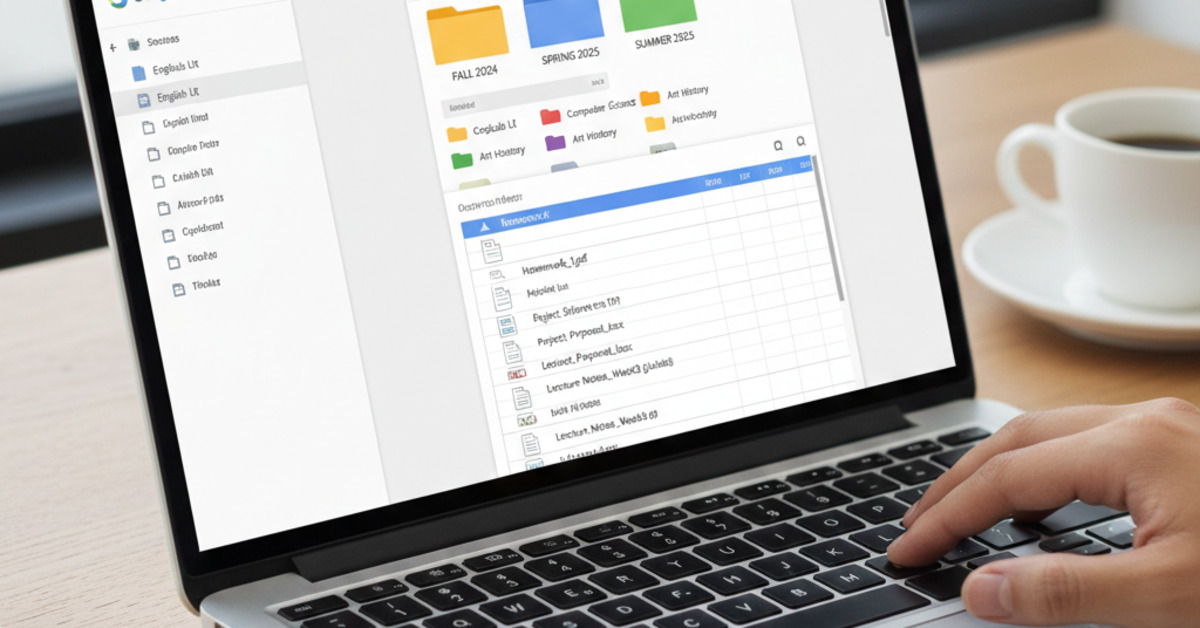
How to Organize Google Drive for Multiple Semesters
Google Drive is an essential tool for any student. It's a great place to store your assignments, notes, and other schoolwork. But if you're not careful, your Google Drive can quickly become a cluttered mess. A well-organized Google Drive will save you time and stress, and it will make it much easier to find what you're looking for. In this guide, we'll show you how to organize your Google Drive for multiple semesters.
1. Create a "School" Folder
The first step is to create a main "School" folder. This is where you'll store all of your school-related files.
2. Create a Folder for Each Semester
Inside your "School" folder, create a folder for each semester. A good naming convention is "YYYY - Season" (e.g., "2023 - Fall," "2024 - Spring").
3. Create a Folder for Each Class
Inside each semester folder, create a folder for each class you're taking. A good naming convention is "Course Code - Course Name" (e.g., "ENGL 101 - Introduction to Composition").
4. Create Subfolders for Each Class
Inside each class folder, create subfolders to organize your files. Here are a few subfolders you may want to create:
- Assignments: This is where you'll store all of your assignments for the class.
- Notes: This is where you'll store all of your notes for the class.
- Readings: This is where you'll store all of your readings for the class.
- Syllabus: This is where you'll store the syllabus for the class.
5. Use a Consistent Naming Convention for Your Files
A consistent naming convention for your files will make it much easier to find what you're looking for. Here are a few tips for naming your files:
- Be descriptive: Use a descriptive name that tells you what the file is.
- Include the date: Including the date in the file name can be helpful for keeping track of different versions of a file.
- Use a consistent format: Use a consistent format for all of your file names.
Example:
YYYY-MM-DD - Course Code - Assignment Name.docx
2023-10-26 - ENGL 101 - Essay 1.docx
6. Use Color-Coding
Color-coding your folders can be a great way to visually organize your Google Drive. You can assign a different color to each class to make it easy to find the folder you're looking for.
7. Archive Old Semesters
At the end of each semester, you can archive your old semester folders to keep your Google Drive from getting cluttered.
- Create an "Archive" folder.
- Move your old semester folders into the "Archive" folder.
The Bottom Line
A well-organized Google Drive is an essential tool for any student. By following these simple tips, you can keep your schoolwork organized and easy to find, and you can save yourself a lot of time and stress.