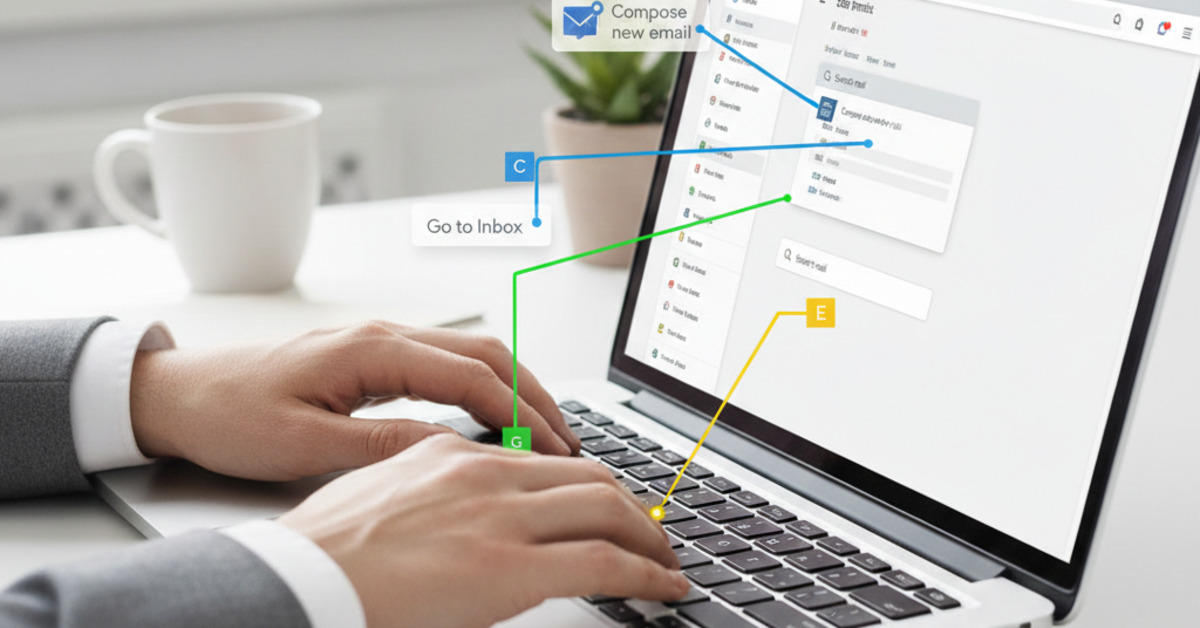
Gmail Shortcuts That Save Hours of Time
Email can be a major time suck. But it doesn't have to be. Gmail is a powerful email client with a number of hidden features and shortcuts that can help you to work smarter, not harder. In this guide, we'll show you the best Gmail shortcuts that can help you to save hours of time and become a more efficient email user.
Enable Keyboard Shortcuts
The first thing you need to do is enable keyboard shortcuts in Gmail.
- Click on the Settings icon (the gear icon in the top right corner).
- Click on See all settings.
- Scroll down to the Keyboard shortcuts section and select Keyboard shortcuts on.
- Click Save Changes.
The Best Gmail Shortcuts
Here are a few of our favorite Gmail shortcuts:
Composing and Sending
- c: Compose a new message.
- d: Compose a new message in a new tab.
- Ctrl + Enter (Windows) or Cmd + Enter (macOS): Send the message.
Navigating Your Inbox
- j: Go to the next message.
- k: Go to the previous message.
- o or Enter: Open a message.
- u: Go back to your inbox.
Actions
- e: Archive a message.
- #: Delete a message.
- r: Reply to a message.
- a: Reply all.
- f: Forward a message.
- !: Mark a message as spam.
- l: Label a message.
- v: Move a message.
Searching
- /: Go to the search bar.
Customizing Your Shortcuts
You can also customize your Gmail shortcuts to fit your own workflow.
- Click on the Settings icon.
- Click on See all settings.
- Click on the Advanced tab.
- Enable the Custom keyboard shortcuts feature.
- Click Save Changes.
- You'll now see a new Keyboard shortcuts tab in your settings where you can customize your shortcuts.
The Bottom Line
Gmail shortcuts are a powerful way to save time and improve your email productivity. By enabling keyboard shortcuts and learning a few of these simple commands, you can spend less time in your inbox and more time on the things that matter most.