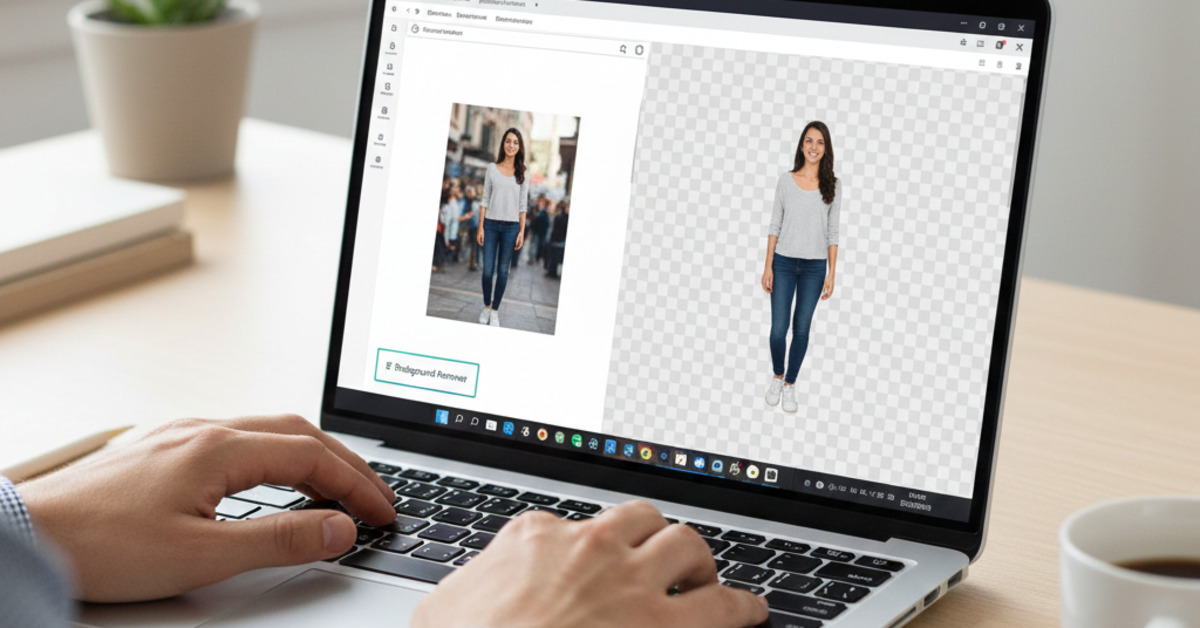
How to Remove Backgrounds from Images in Canva
Have you ever wanted to remove the background from an image to create a professional-looking social media post or presentation? In the past, you would have needed to use a complex program like Photoshop to do this. But now, you can do it in just a few clicks with Canva's background remover tool.
What is Canva?
Canva is a free online graphic design tool that is perfect for creating social media posts, presentations, and other visual content. It's easy to use, and it has a wide variety of templates and tools to help you to create professional-looking designs.
The Canva Background Remover Tool
The Canva background remover tool is a powerful feature that allows you to remove the background from an image in just a few clicks. It's a great way to create clean and professional-looking images for your designs.
Note: The background remover tool is only available to Canva Pro users.
How to Remove the Background from an Image in Canva
- Upload your image: The first step is to upload your image to Canva.
- Add the image to your design: Add the image to your design.
- Click on the "Effects" button: With the image selected, click on the "Effects" button in the top toolbar.
- Click on the "Background Remover" button: Click on the "Background Remover" button.
- Wait for the magic to happen: Canva will automatically remove the background from your image.
Tips for Using the Background Remover Tool
- Use a high-quality image: The background remover tool works best with high-quality images that have a clear subject.
- Use the "Erase" and "Restore" brushes: If the background remover tool doesn't get it quite right, you can use the "Erase" and "Restore" brushes to fine-tune the results.
- Use a solid color background: If you're having trouble removing the background from an image, try placing it on a solid color background. This will make it easier for the background remover tool to distinguish the subject from the background.
The Bottom Line
Canva's background remover tool is a quick and easy way to remove the background from an image. With just a few clicks, you can create professional-looking images for your social media posts, presentations, and more.